|
Remote Connection |
|
|
|
Note This page is only available for VN8810 devices for remote administration via the cloud. |

General
Since version 2.3 of the Vector Tool Platform the remote device administration for the Vector VN8810 is supported.
This makes it possible to manage devices over the Internet and to install and configure new apps.
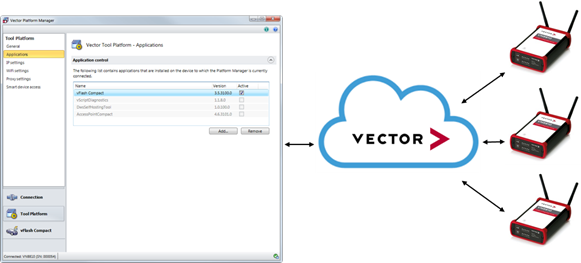
This is a chargeable additional service that can be booked annually.
Are you interested? Then please contact us by e-mail at VN88-support@vector.com.
|
|
Note
|
Remote Connections
In order to be able to manage a device remotely, remote connections must be allowed. For security reasons, this option is deactivated on delivery / initial commissioning. To accept them, activate Allow remote connections in this area.
Session Configuration
The session identifier/password pair that you can configure in this section will be needed later to connect to the VN8810.
Session Identifier
The session ID for the remote connection corresponds to the serial number of the device (without leading zeros).
Session Password
You can define the session password yourself.
Server Configuration
To configure the connection to the Vector Cloud for remote administration in this area, the server URL must be specified. You will receive this after booking the additional service for remote administration.
Please contact us at VN88-support@vector.com for more information.
Proxy Configuration
For security reasons, in many IT environments it is not possible to connect directly to the Internet. A proxy server checks and, if necessary, filters the data traffic. In this case, activate Use proxy and specify both the proxy server under Proxy address and its connection under TCP port. Then activate Use proxy credentials and enter your user name and password for authentication.