Sometimes you need to see all contents/files of a repository, without having a working tree (e.g. a bare repository) or you want to see all files of a revision without switching to it. That's what the Repository Browser is for. You can open it using → or from the log dialog (cf. the section called “Log Dialog”) using the context menu of a commit.
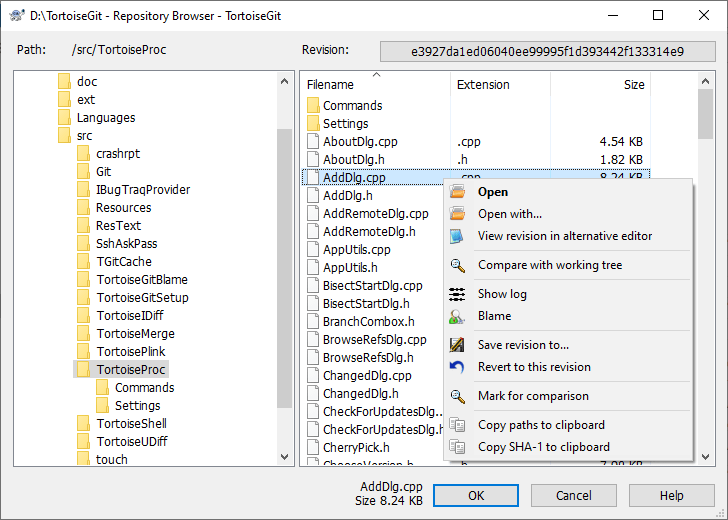
The repository browser looks very similar to the Windows explorer, except that it is showing the content of the repository at a particular revision rather than files on your computer. In the left pane you can see a directory tree, and in the right pane are the contents of the selected directory. At the top of the Repository Browser Window you can see the path within the repository and the revision you want to browse.
Just like Windows explorer, you can click on the column headings in the right pane if you want to set the sort order. And as in explorer there are context menus available in both panes.
In order to get an older version of a file you can click on a file and select , but it is also possible to just drag one or more files into a Windows explorer window.
The context menu for a file allows you to:
Open the selected file, either with the default viewer for that file type, or with a program you choose.
Show the revision log for that file so you can see the history of it.
Compare the file at the selected revision with the same file in your working tree.
Blame the file, to see who changed which line and when.
Save an unversioned copy of the file to your hard drive or revert this file in your working copy (i.e. saves the file to it's old path in the working tree).
Copy the filename with full path shown in the address bar to the clipboard.
The context menu for a folder allows you to:
Show the revision log for that folder.
Copy the full path to the clipboard.
You can use F5 to refresh the view as usual. This will refresh everything which is currently displayed.