Ivanti Secure Access Client Interface
The Ivanti Secure Access Client interface lists your Ivanti Secure Access Client connections. Typically, your network administrator defines and deploys connections to your Ivanti Secure Access Client. Your administrator can also allow you to create new connections to Ivanti Secure Access Client servers. Connecting to the Web portal of a Ivanti Secure Access Client server can add a connection to that server to your Ivanti Secure Access Client interface.
Ivanti Secure Access Client also displays a system tray icon that provides connection status, lets you connect and disconnect from networks and meetings, and enables quick access to the program interface.
Connection buttons:
|
New-UX |
Classic UI |
Description |
|---|---|---|
|
|

|
Add a new connection. |
|
|

|
Edit a selected inactive connection. |
|
|

|
Delete the selected inactive connection. |

 , Edit
Connection status icons:
|
New-UX |
Classic UI |
Description |
|---|---|---|
|
|

|
Connected |
|
|

|
Connecting |
|
|

|
Connected with limitations |
|
|

|
Connection attempt failed |
|
|

|
Connection suspended |
|
|

|
Connected to the local network but no Internet access available. Public WiFi locations often deploy a captive portal that requires the user to enter authentication information or to accept terms of service before network access is granted. Ivanti Secure Access Client detects the presence of captive portals and does not initiate a connection to a Ivanti Secure Access Client server until Internet access is granted. |


Ivanti Secure Access Client supports the Federal Information Processing Standard (FIPS), which defines secure communication practices for the U.S. government. If your Ivanti Secure Access Client administrator has enabled FIPS, FIPS On appears near the bottom the Ivanti Secure Access Client window.
Switching UI modes
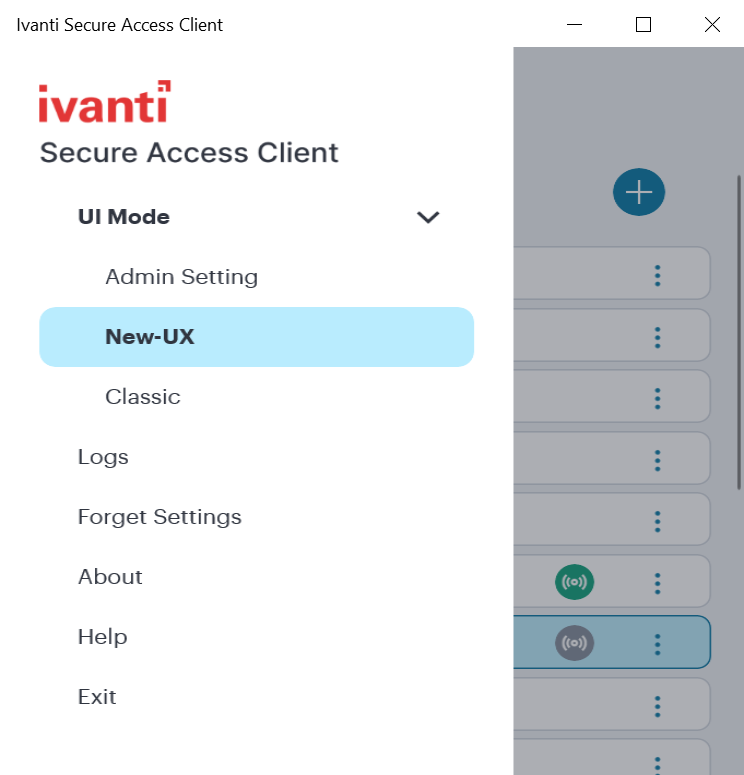
The Ivanti Secure Access Client allows to navigate from the New-UX to Classic UI and vice versa.
On New-UX, select  and UI mode to switch between the modes.
On Classic UI, click File > UI Mode to switch between the modes.
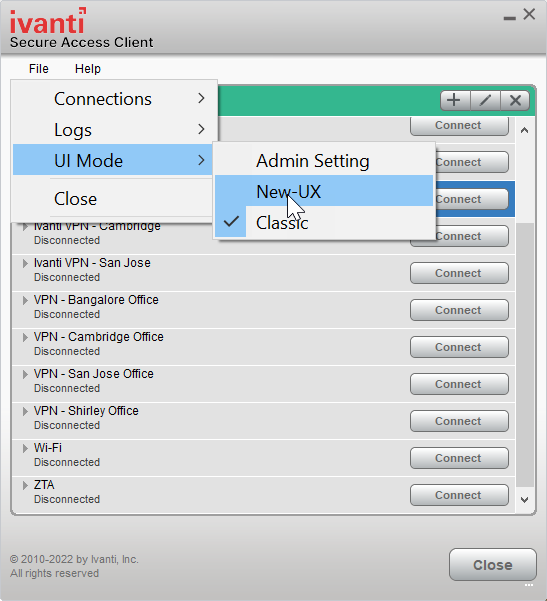
Select Admin Setting to change the mode as per the server settings.