Upload Log Files
The Ivanti Secure Access Client makes it easy to transmit diagnostic log bundles to ICS gateways for analysis by system administrators. To send a log bundle to the ICS, when a VPN connection is active, run the following from the Ivanti Secure Access Client user interface: File > Logs > Upload.
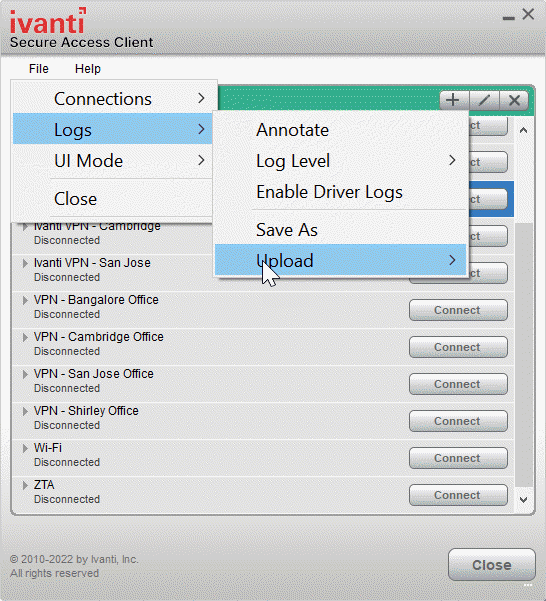
You must select the server to send the logs to. A dialog will appear that shows the progress of the upload.
Your system administrator must enable this feature on the server side before an end user can upload log files to the Ivanti gateway.
The server has a maximum size limit of 200MB for all uploaded client logs combined.
The Ivanti Connect Secure gateway has a finite disk partition dedicated for storage of uploaded log files. If this space on the gateway is filled with other log files, then your upload may fail. In this case, you would need to ask your system administrator to clear space for your log upload.